# Data Acquisition

Launch LadybugCapPro. Click the **Start Camera** button to launch the camera selection menu:

<div data-full-width="false"><figure><img src="https://2222094320-files.gitbook.io/~/files/v0/b/gitbook-x-prod.appspot.com/o/spaces%2FdEevfLZRIk38LUPwDa4V%2Fuploads%2FdjLPEpAhOFdG72iqvthO%2FScreenshot%202025-05-01%20164246.png?alt=media&#x26;token=5b07eed3-660a-44df-9f11-92155fccb93d" alt="" width="375"><figcaption><p>LadybugCapPro Welcome Interface</p></figcaption></figure></div>

Before connecting to the camera, click the **Configure Selected** button to configure camera parameters:

<figure><img src="https://2222094320-files.gitbook.io/~/files/v0/b/gitbook-x-prod.appspot.com/o/spaces%2FdEevfLZRIk38LUPwDa4V%2Fuploads%2FPoVThS8S1ZnwVDG1sPg1%2FScreenshot%202025-05-01%20164537.png?alt=media&#x26;token=b2b1d026-97fa-49d1-8a9a-997a1b34345c" alt="" width="563"><figcaption><p>LadybugCapPro Camera Selection Interface</p></figcaption></figure>

Click on the **Trigger/Strobe** tab to view the trigger and strobe options. To trigger the camera through rover, you must check the checkbox **Enable/disable trigger**. Under **Pin Direction Control**, verify **GPIO 0** is set as **In** and **GPIO 1** is set to **Out**. Under **Strobe Control**, verify the checkbox **Enable strobe for this pin** for **GPIO 1** is checked, Polarity is set to **Low**, with a Duration of **10.00**:

<figure><img src="https://2222094320-files.gitbook.io/~/files/v0/b/gitbook-x-prod.appspot.com/o/spaces%2FdEevfLZRIk38LUPwDa4V%2Fuploads%2FI5KDbvhWddOLdN5vXkmV%2FScreenshot%202025-05-01%20164747.png?alt=media&#x26;token=8c7e0a37-3d11-4281-92ed-c70e8e4354da" alt=""><figcaption><p>Trigger/Strobe LadybugCapPro Camera options</p></figcaption></figure>

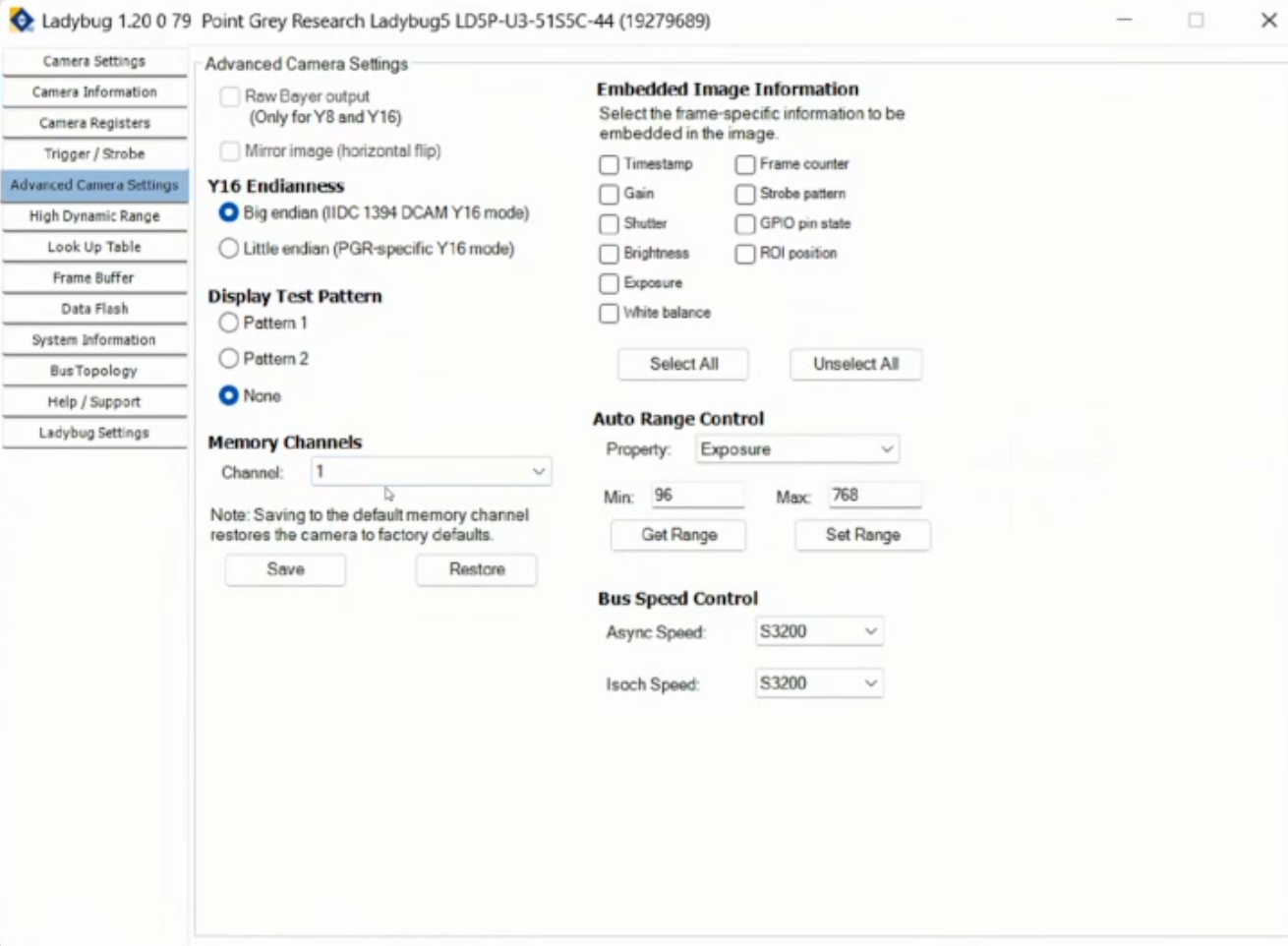
To save these parameters, go to the **Advanced Camera Settings** tab to and set **Memory Channels** to a value of **1**. Then click save:

<figure><img src="https://2222094320-files.gitbook.io/~/files/v0/b/gitbook-x-prod.appspot.com/o/spaces%2FdEevfLZRIk38LUPwDa4V%2Fuploads%2FXb6AAJlQgFes6JIvCmpP%2FScreenshot%202025-05-01%20170136.png?alt=media&#x26;token=3865f5fc-a5a4-4935-89c4-65e5fe8d8f34" alt="" width="563"><figcaption><p>Save parameters to Memory Channel 1</p></figcaption></figure>

Once the camera parameters have been set, close the Camera Control interface and click the **OK** radio button in the Camera Selection menu to establish the connection with the Ladybug5 camera:

<figure><img src="https://2222094320-files.gitbook.io/~/files/v0/b/gitbook-x-prod.appspot.com/o/spaces%2FdEevfLZRIk38LUPwDa4V%2Fuploads%2Fr6S6hDgCKbnsfz2ljOZG%2FScreenshot%202025-05-01%20170347.png?alt=media&#x26;token=8747a91a-0065-4b17-ba64-bd2cf4cb71af" alt="" width="563"><figcaption><p>Click OK to connect to Ladybug5 camera</p></figcaption></figure>

In the main menu of LadybugCapPro, navigate to the **GPS** tab and select **Start GPS Time Sync:**

{% hint style="info" %}
Customers were previously advised to use a SerialPortRedirector software and also select **Start GPS Positioning**. Neither the serial port redirector software, nor enabling GPS Positioning is still required. Using it is not harmful, but adds no value to the data in postprocessing.
{% endhint %}

<figure><img src="https://lh3.googleusercontent.com/uRLiu4dtZiSssw24FQtRfMezq4FeDXguPLF0470Fq-MsqZClf1lS_M1k__efybC3aSPrVywVP97_QpGApOcDADDVkVBf_qEoQp8x_JgAVnjaz-CzBWZOD5YCkQrXdY3DZoESFzWYivSE7qXlrdPPBA" alt=""><figcaption></figcaption></figure>

<figure><img src="https://2222094320-files.gitbook.io/~/files/v0/b/gitbook-x-prod.appspot.com/o/spaces%2FdEevfLZRIk38LUPwDa4V%2Fuploads%2FXt948HXOHEDkNvMJlVpp%2FScreenshot%202025-05-01%20171153.png?alt=media&#x26;token=3e353a33-766e-4faf-b38f-34a5637c3b5b" alt=""><figcaption></figcaption></figure>

Set the **Data Format** to **JPEG (12-bit) - GIS** to acquire imagery with higher color depth:

<figure><img src="https://2222094320-files.gitbook.io/~/files/v0/b/gitbook-x-prod.appspot.com/o/spaces%2FdEevfLZRIk38LUPwDa4V%2Fuploads%2FcXpzVDgRdpJKQGJHgRe7%2FScreenshot%202025-05-01%20170744.png?alt=media&#x26;token=e9628c9f-26cf-4ab0-aa5c-1b7d275a5569" alt="" width="563"><figcaption><p>Setting Data Format to JPEG (12-bit) - GIS in LadybugCapPro</p></figcaption></figure>

Depending on where you will be driving, select the appropriate Shutter range (**Drive Highway**, **Drive City**, **Indoor**, **Low noise**):

<figure><img src="https://2222094320-files.gitbook.io/~/files/v0/b/gitbook-x-prod.appspot.com/o/spaces%2FdEevfLZRIk38LUPwDa4V%2Fuploads%2FB8fHpeN0S7HerVeBpfjQ%2FScreenshot%202025-05-01%20170838.png?alt=media&#x26;token=63401f22-2f2d-44ee-9b0b-e59c6d8395f6" alt="" width="563"><figcaption><p>Selecting Shutter Range in LadybugCapPro</p></figcaption></figure>

| Drive Highway | Maximum shutter is set to as short as possible to prevent motion blur. Best used outdoors or images may be too dark. This is the default. |
| ------------- | ----------------------------------------------------------------------------------------------------------------------------------------- |
| Drive City    | Maximum shutter set for city driving speed (40 km/h or 25 m/h) to prevent motion blur.                                                    |
| Indoor        | Maximum shutter is slightly longer than the driving modes, for use in indoor or lower light applications.                                 |
| Low Noise     | Maximum shutter range allowed for lowest noise. This may introduce motion blur.                                                           |

Click the **Record new stream** radio button and choose a location to save the image stream.&#x20;

<figure><img src="https://2222094320-files.gitbook.io/~/files/v0/b/gitbook-x-prod.appspot.com/o/spaces%2FdEevfLZRIk38LUPwDa4V%2Fuploads%2FnMh4WUaYSw2nqKTcIK5Z%2FScreenshot%202025-05-01%20171536.png?alt=media&#x26;token=080cbd21-92d2-4567-b7c5-aa843e2a7647" alt="" width="563"><figcaption><p>Record new stream in LadybugCapPro</p></figcaption></figure>

Once recording is in progress, you can activate the LadyBug camera (CAM LB) via [SpatialExplorer (**ACT**)](https://docs.phoenixlidar.com/spatialexplorer-8-and-9/user-interface/windows/sensor-controller):&#x20;

<figure><img src="https://2222094320-files.gitbook.io/~/files/v0/b/gitbook-x-prod.appspot.com/o/spaces%2FdEevfLZRIk38LUPwDa4V%2Fuploads%2Fu27UaPRfMvALJVAt3tKW%2FScreenshot%202025-05-01%20171749.png?alt=media&#x26;token=b198cc39-8098-44f6-97b1-bb07612524cd" alt="" width="563"><figcaption></figcaption></figure>

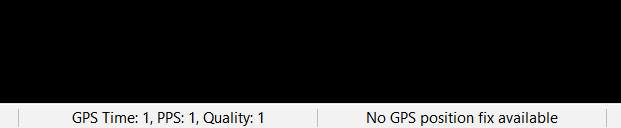
Once **GPS Time Sync** has been enabled and the first images have been recorded, you should see that the **GPS Time**, **PPS**, and **Quality** bits in the status bar at the bottom are all set to **1**. LadybugCapPro will notify you of **No GPS position fix available** - it's not necessary for LadybugCapPro to have GPS positioning, as the imagery will be timestamped per hardware.

<figure><img src="https://content.gitbook.com/content/dEevfLZRIk38LUPwDa4V/blobs/IdsGflPxYaTGMgVNRkNP/Screenshot%202023-02-28%20120226.png" alt=""><figcaption><p>GPS, PPS, and Quality bits MUST be set to 1 after acquiring the first images.</p></figcaption></figure>

The camera requires 3 different signals for precise hardware time synchronization to work.

1. PPS (pulse per second) is an electrical pulse sent from the GNSS receiver to the camera on the exact start of each new second, once per second. The presence of this signal is indicated by the **PPS** field.
2. GPRMC/GPZDA is a NMEA sentence containing absolute time, sent from the GNSS receiver to the camera, also once per second. The presence of this message is indicated by the **GPS Time** field.
3. GPGGA is a NMEA sentence containing the GNSS reception quality indicator. This is used by the camera to check if the time in the GPRMC/GPZDA logs is valid at all. The presence of this message is indicated by the **Quality** field.

All 3 signals are configured by Phoenix LiDAR Systems at the factory, and need not be configured by the user.

{% hint style="info" %}
Enable the camera to acquire a few images, and verify that GPS Time, PPS, and Quality are **all set to 1**! If only one is zero, the camera clock will not be synchronized, making the acquired imagery difficult or impossible to postprocess.

If only Quality is 0, ensure you have proper GNSS reception.
{% endhint %}