> For the complete documentation index, see [llms.txt](https://docs.phoenixlidar.com/llms.txt). Markdown versions of documentation pages are available by appending `.md` to page URLs; this page is available as [Markdown](https://docs.phoenixlidar.com/spatialexplorer-8-and-9/user-interface/windows/project-setup.md).
# Coordinate Reference System
The coordinate reference system (CRS) window is used to configure the CRS of the project and various other import/export artifacts:
Certain input artifacts (reference stations, ground control points, LAZ point clouds, etc.) require the CRS to be specified upon importing the artifact. As for the CRS of the project, this can be edited at any time by clicking on the CRS shown at the top right of the application:
{% hint style="info" %}
When opening a PLP file for the first time, you will be asked to assign a project CRS.
{% endhint %}
## Geographic-3D/compound CRS
Basic geodetic 3D coordinate systems, such as WGS84 and NAD83, can be found in the **Well-known geographic-3D/compound CRS** tab:
Configure the horizontal and vertical CRS. Some users may find their CRS predefined under the **Well-known geographic-3D compound CRS**, however in most cases the user will need to select the horizontal and vertical CRS separately by selecting **User-defined compound CRS**.
## User-defined compound CRS
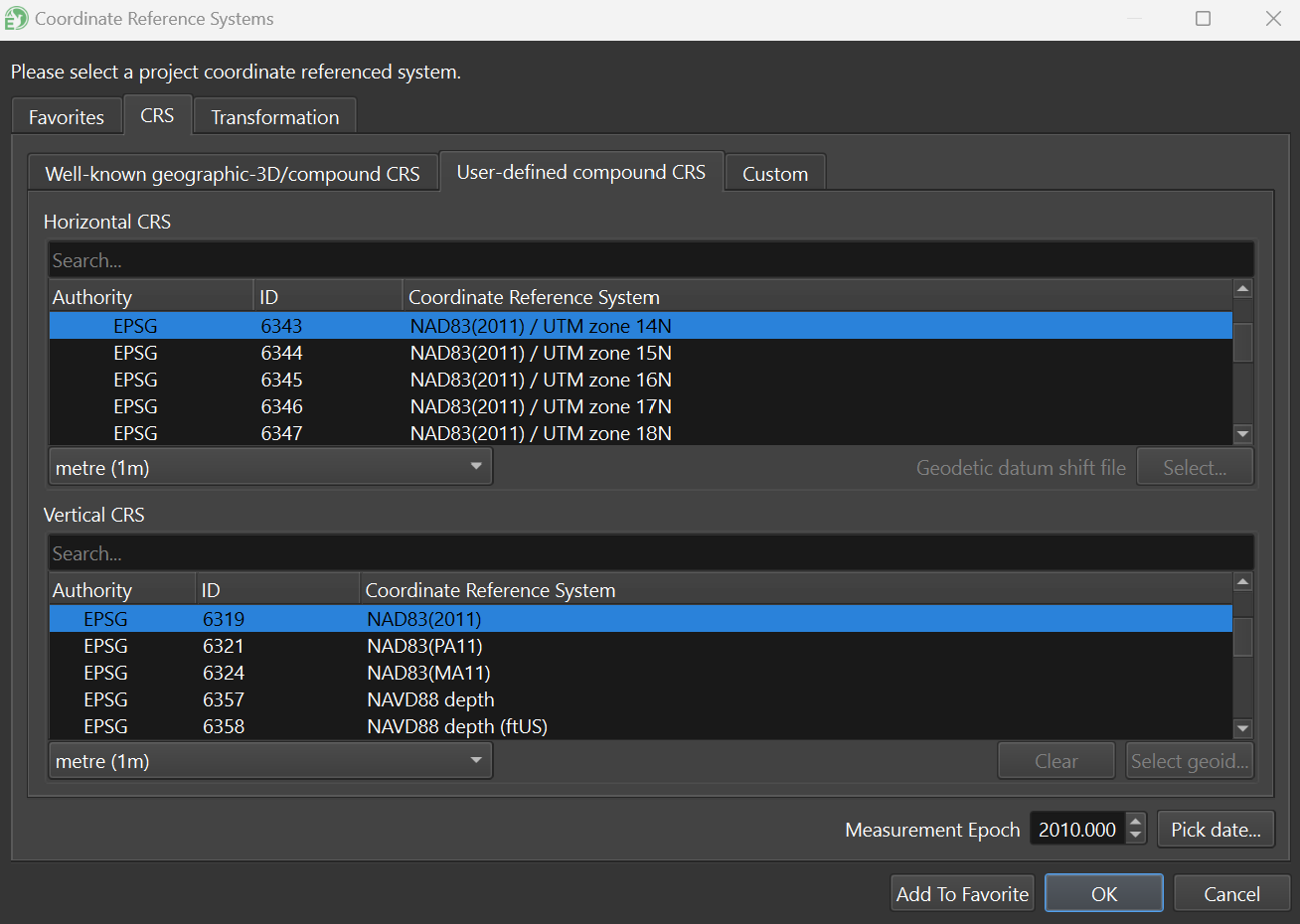
Projected coordinate systems and coordinate systems with distinct horizontal and vertical components should be assigned using the **User-defined compound CRS** tab:
Some vertical coordinate reference systems will require a geoid grid. If a geoid grid is not required, such as when using ellipsoidal altitudes, SpatialExplorer will not allow you to select a grid.
If a geoid is required, click **Select geoid** to access the [Grids manager](/spatialexplorer-8-and-9/user-interface/toolbars/lidarmill/manage-grids.md):
Navigate to the geoid you require, or import a local file if necessary. If the geoid is already downloaded, you can select it and click **Use selected grid**. If your geoid is not downloaded yet, you will need to first click the **Download selected grid**.
Once your geoid grid is selected, you should see it in the bottom window of the CRS menu:
Once your project CRS is configured, you should see the CRS listed in the top right of the SpatialExplorer window.