> For the complete documentation index, see [llms.txt](https://docs.phoenixlidar.com/llms.txt). Markdown versions of documentation pages are available by appending `.md` to page URLs; this page is available as [Markdown](https://docs.phoenixlidar.com/spatialexplorer-8-and-9/user-interface/windows/project/reference-stations.md).
# Reference Stations
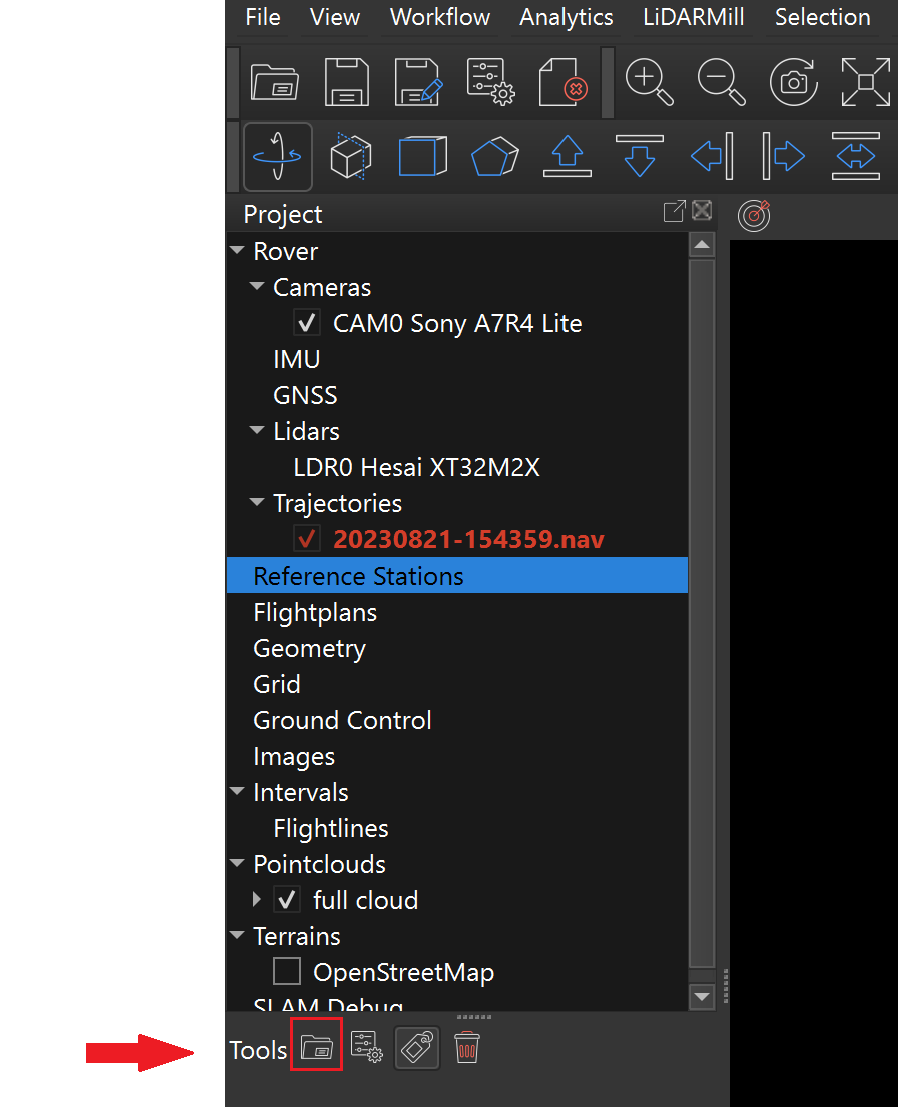
Reference stations are used with NavLab Embedded to achieve the highest level of positioning accuracy. To import a reference station, navigate to **Reference Stations** in the project window and select the **File Open** icon:
Then, navigate to a raw observation file recorded by your reference station. The following raw reference station file formats are supported:
* RINEX versions 2 and 3
* Raw DAT files produced by Stonex receivers sold by Phoenix LiDAR Systems
* Raw files produced by receivers using NovAtel OEM GNSS boards (many Hemisphere, Topcon, and Leica branded receivers)
{% hint style="info" %}
If you are using RINEX format data, select the observation file (typically file extensions .22O, .23O, .24O, .obs) when importing the reference station, however ensure that the RINEX ephemeris files are also present in the same directory.
{% endhint %}
Once the reference station is imported, configure the position by double clicking the reference station file in the project window. You can also click the settings button .
Select a position from the dropdown menu:
In most cases, you will need to [create a position manually](/spatialexplorer-8-and-9/user-interface/windows/project/reference-stations/creating-positions.md), or [compute a PPP position](/spatialexplorer-8-and-9/user-interface/windows/project/reference-stations/computing-positions.md).
 .
Select a position from the dropdown menu:
.
Select a position from the dropdown menu:
