> For the complete documentation index, see [llms.txt](https://docs.phoenixlidar.com/llms.txt). Markdown versions of documentation pages are available by appending `.md` to page URLs; this page is available as [Markdown](https://docs.phoenixlidar.com/spatialexplorer-8-and-9/user-interface/toolbars/rover/rover-settings-and-profiles/camera-settings.md).
# Camera Settings
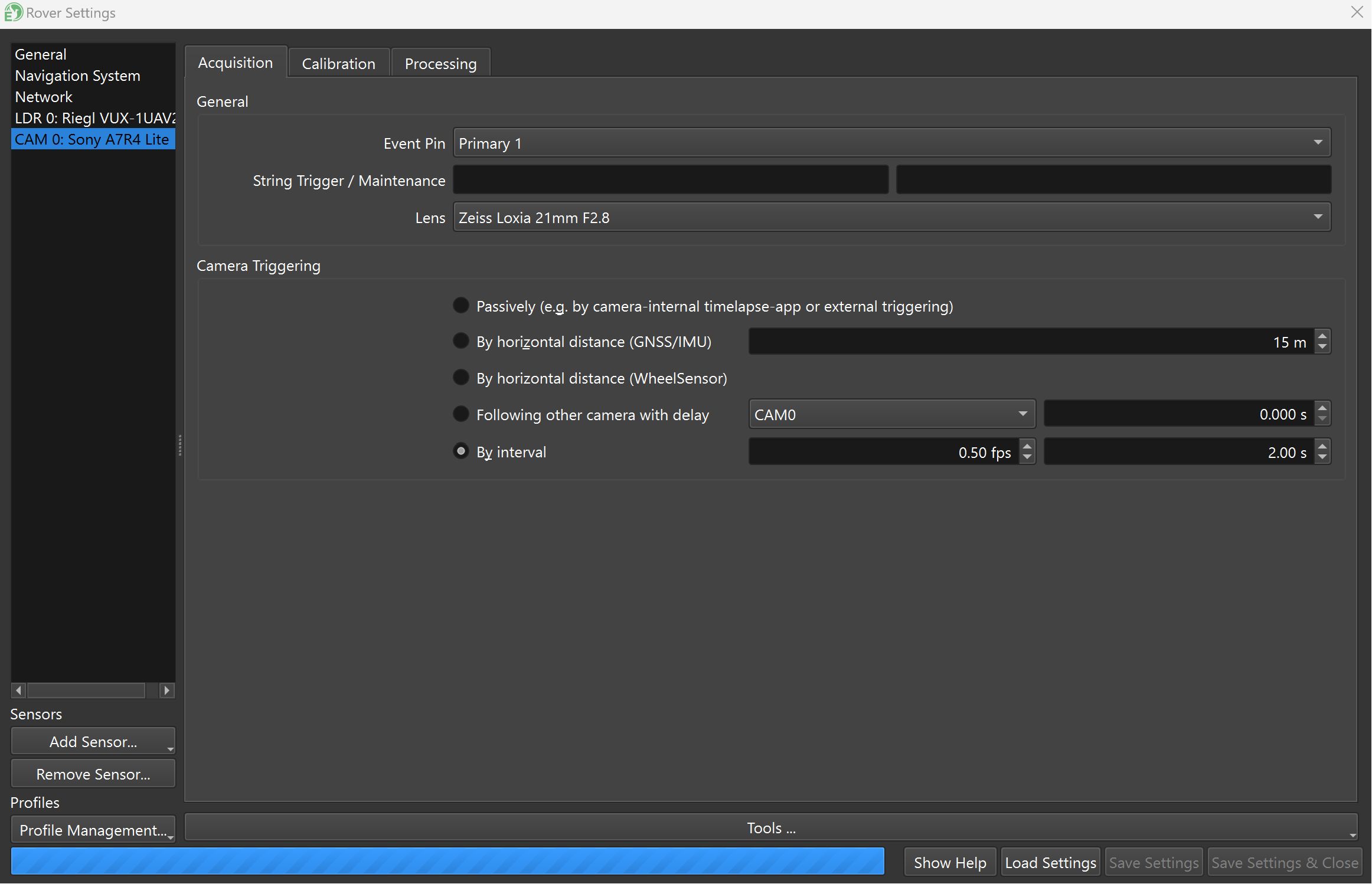
Camera settings can be modified by clicking the camera in the left banner:
## Camera Triggering Options
Camera triggering method can be configured here. The following options are available:
{% hint style="warning" %}
Sensor activation polygons will apply to camera sensors. Ensure that your selected camera triggering method agrees with any sensor activation polygons (i.e. if triggering by position, and a sensor activation polygon is active, ensure that all camera trigger positions are within the sensor activation polygon).
{% endhint %}
### Distance
This method will trigger at a specified distance interval (e.g. 10 m). Specifically, this method uses INS distance (i.e. distance as determined through GNSS and IMU). This method may perform poorly in challenging GNSS environments.
### Following
Trigger after a different camera is triggered, with some time delay specified. Useful for staggering image recording of several cameras.
### Interval
Trigger cameras at a user-specified time interval.
### Passive
This method is used when cameras are triggered externally, via some other means or software.
### Point In View
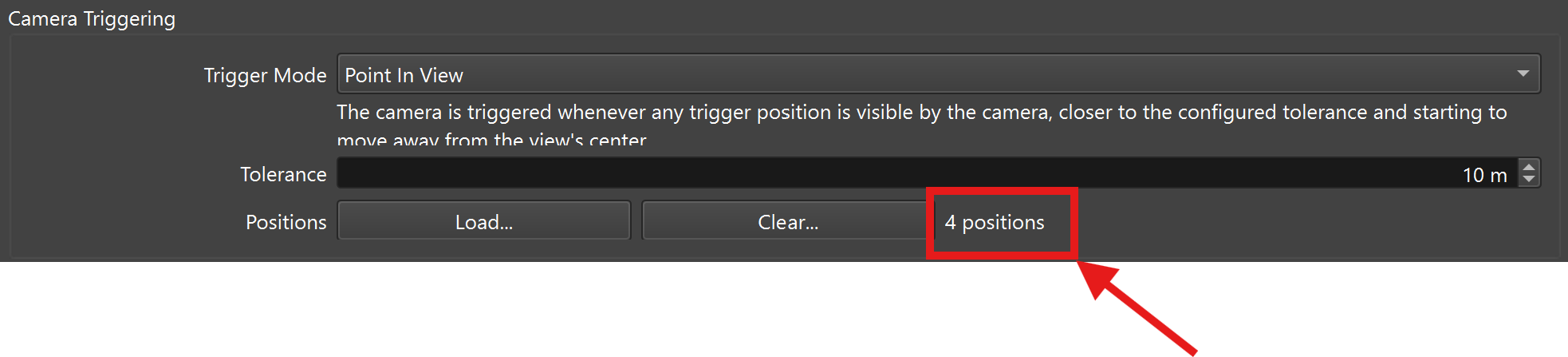
SpatialExplorer can trigger a camera based on a 3D point being in view of the camera. This feature relies on the camera being properly configured and calibrated (correct camera transforms, correct focal length, and other intrinsic properties).
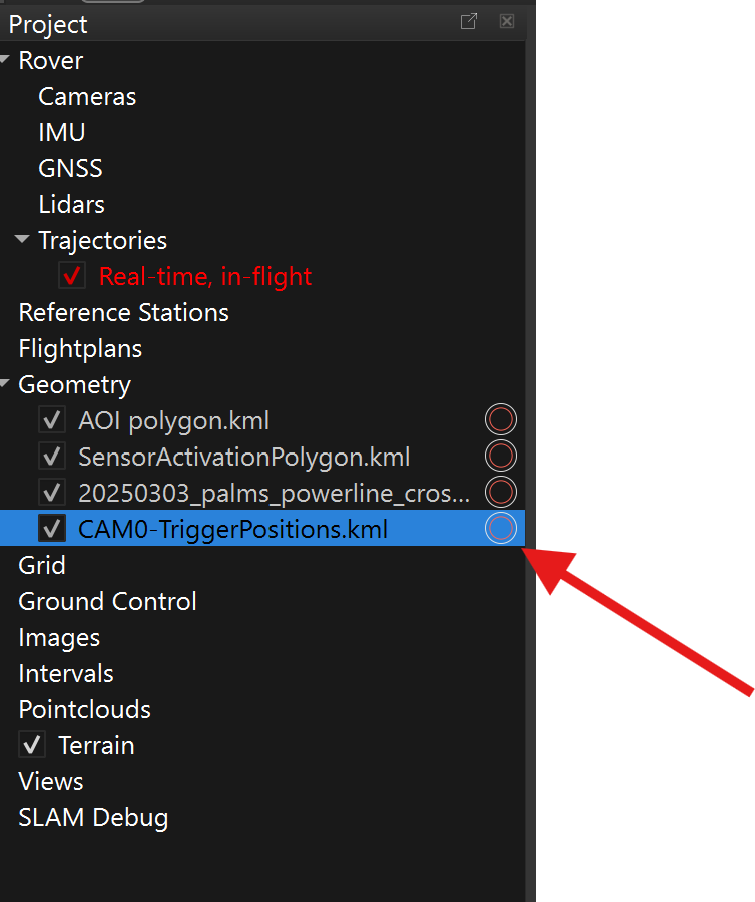
3D trigger positions can be loaded from points in a KML file. To accomplish this, first load a KML into the Project as a Geometry. Then you can load this KML as trigger positions:
### Vehicle Position
Trigger the camera when the vehicle (INS position) is near some location. Load vehicle positions from a KML, similar to the Point In View documentation shown above.
### Wheel Sensor
This method will trigger at a specified distance interval (e.g. 10 m). This method uses odometer distance readings, from a wheel sensor, to measure traversed distance. This method is preferred to the standard, INS distance triggering method when GNSS conditions are poor.